
When you buy something through one of the links on our site, we may earn an affiliate commission.
Google Images has been around for decades, yet millions of people are unaware of how to find an image from an image instead of typing search terms.
This process is known as a reverse image search, and it's a useful skill that makes it a breeze to discover the origins of a picture.
In this article, we’ll teach you step-by-step how to perform a reverse image search using Google and other platforms.
Contents
How To Do Reverse Image Searches On Google
Google introduced its reverse image search tool in 2011, allowing users to find images by uploading a link or saved picture (and now you can also do a reverse video search).
But while this process is simple on a desktop, it can be a little complicated when using a mobile device.
Here are the steps to do a reverse image search, whether you’re you want to search on iPhone, Android phone, or PC:
Using an iPhone
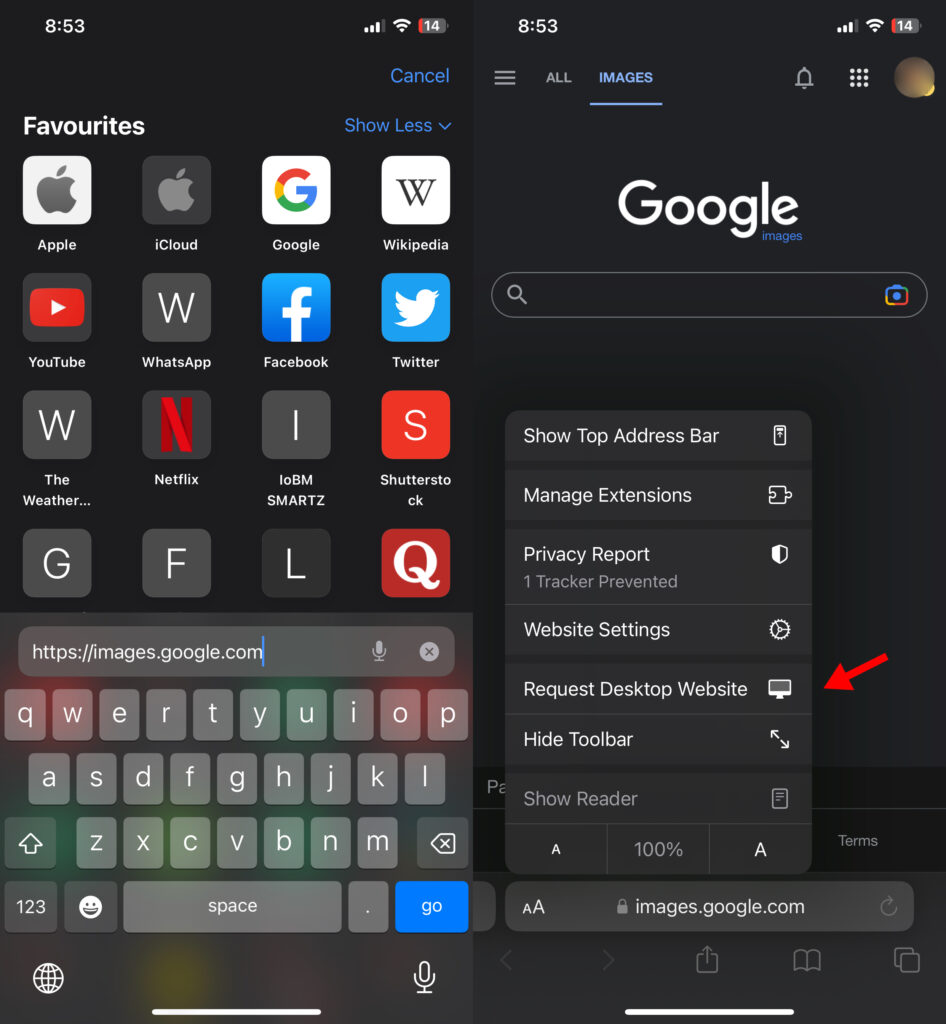
1. Open Safari on your iPhone and go to images.google.com.
2. Tap on the Aa icon in your address bar and select Request Desktop site.
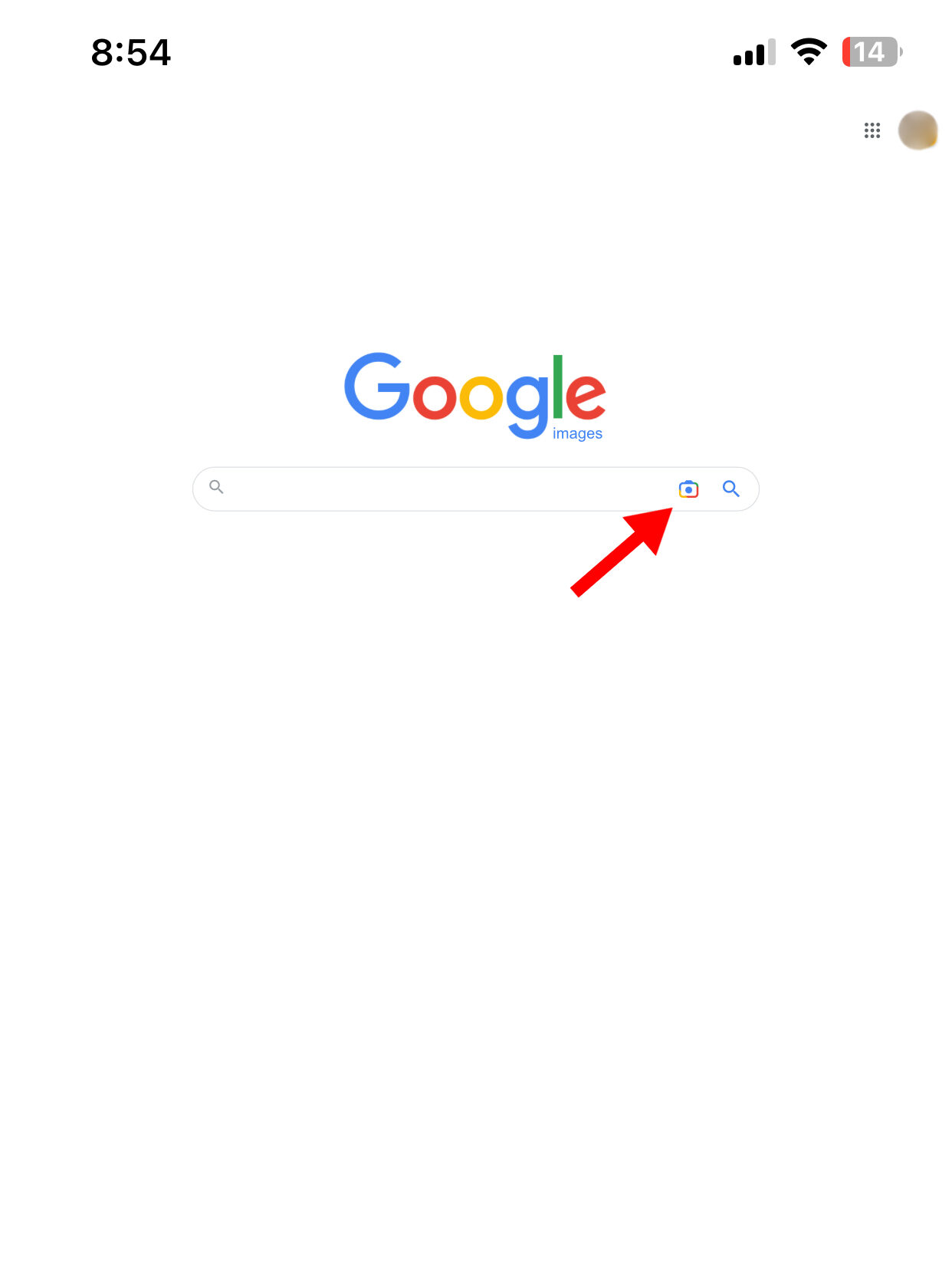
3. Click on the camera icon in the Google search bar.
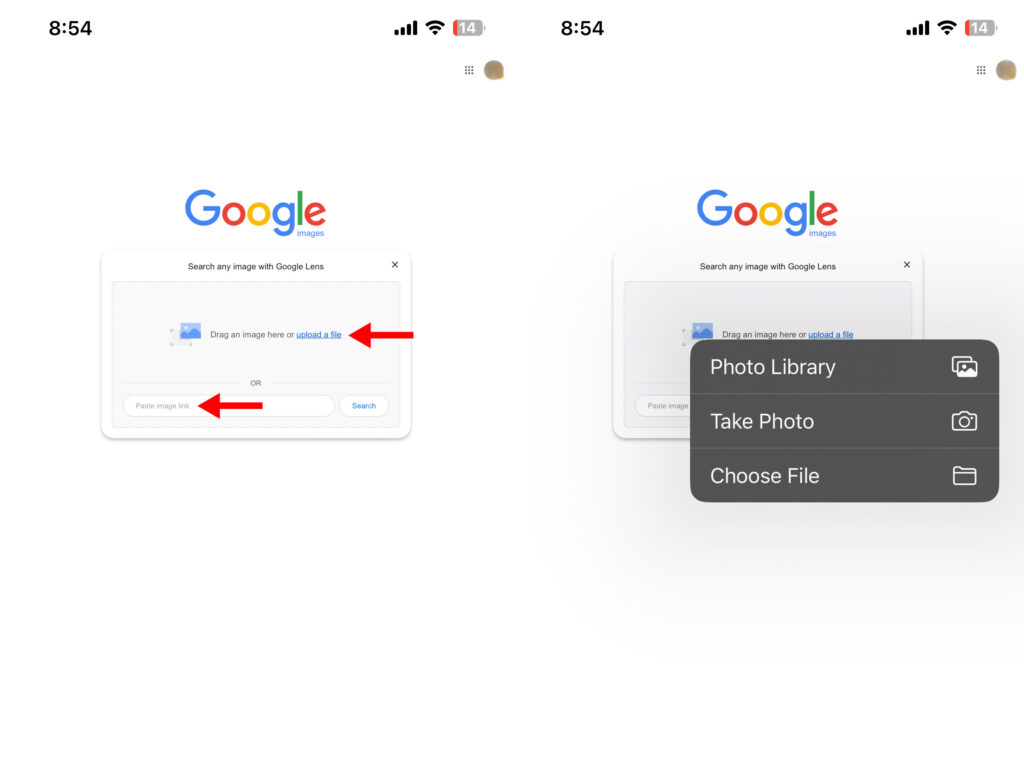
- To search Google using a link, enter the image URL in the text box and tap on search.
- To search using a downloaded image, click on Upload a file and select a picture from your Photo Library, Files, or capture it with your camera.
An easier way to easily search Google for an image is using the Google app for iPhone. Here are the steps:
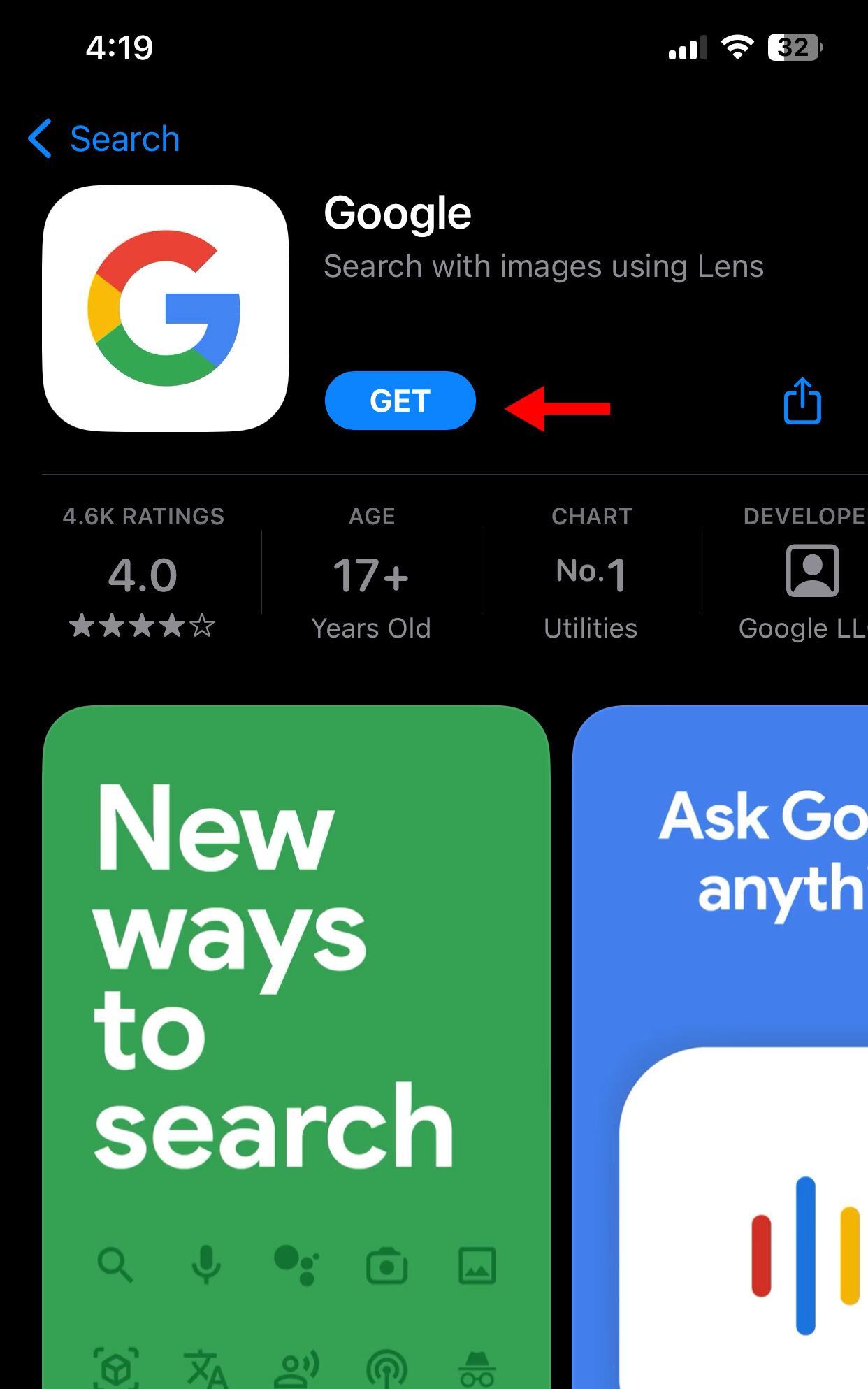
1. Download the Google app from your App Store.
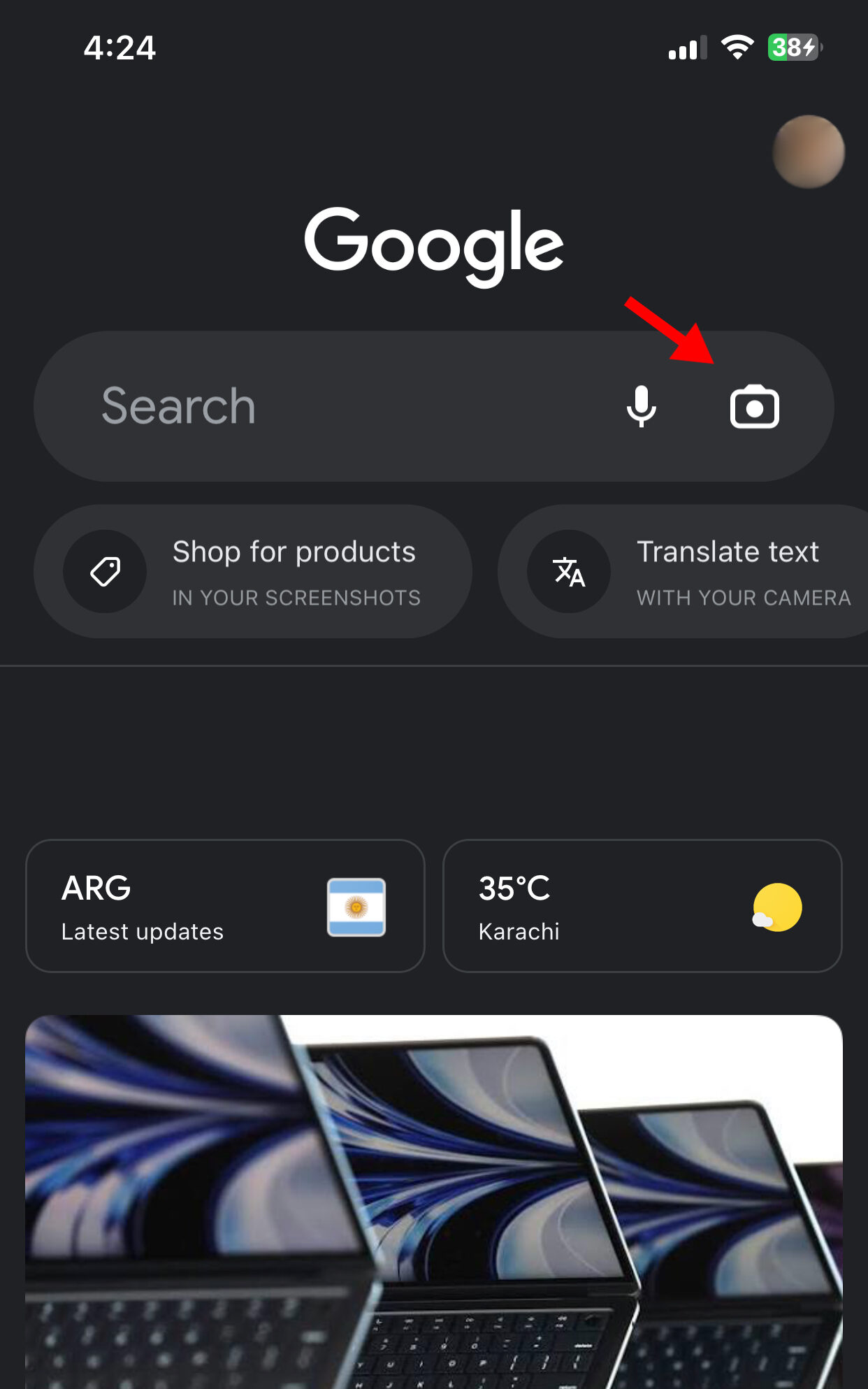
2. Open the Google app and click on the Camera icon in the search bar.
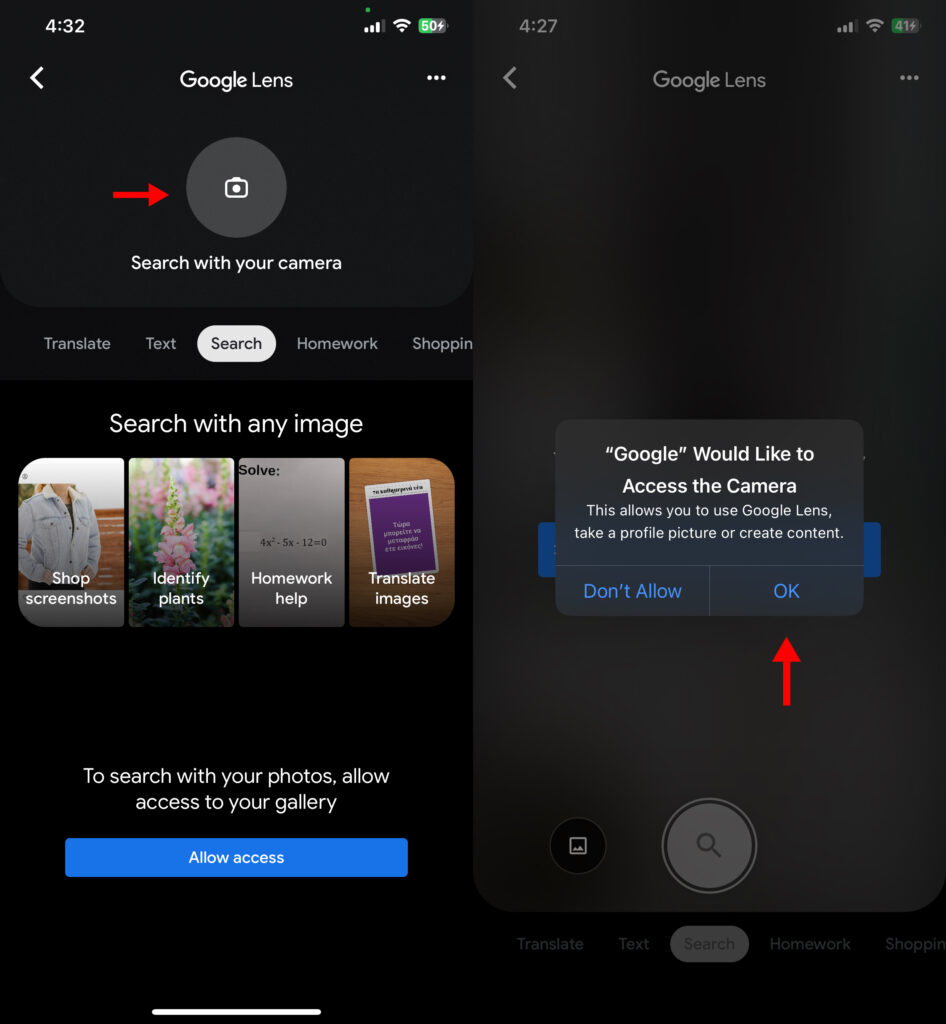
3. If you want to reverse search a live object, click on the camera icon again. Select OK when asked for permission to access the camera.
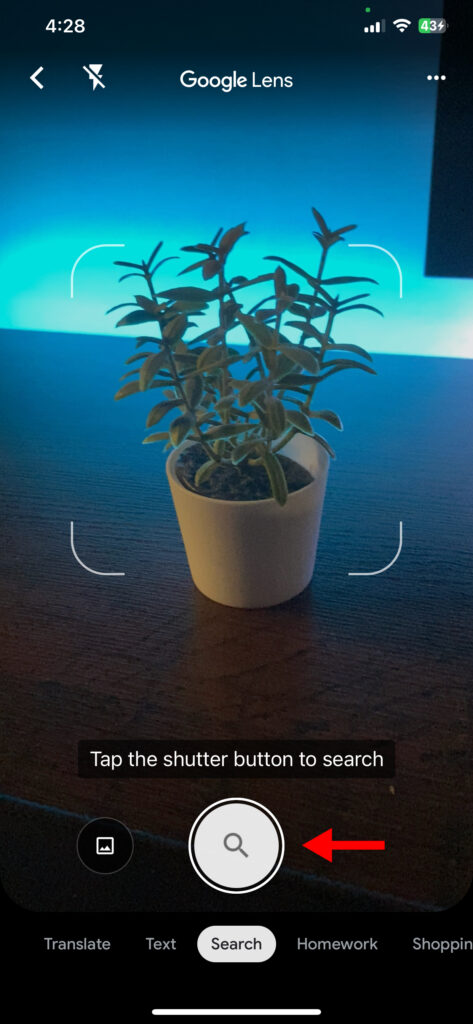
4. Place the object in your viewfinder and tap the shutter button. Google will display all related images and other websites using the picture.
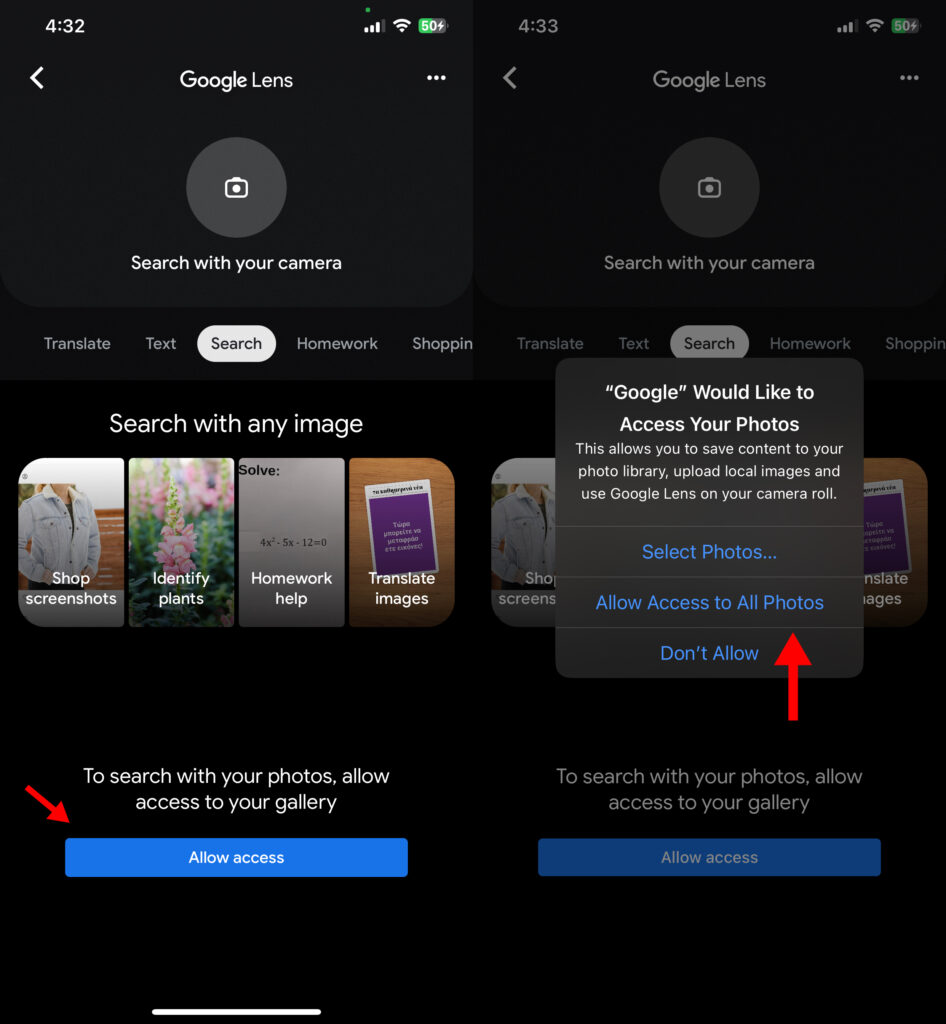
5. To search using a downloaded image, tap the blue Allow access button and select Allow Access to All Photos.
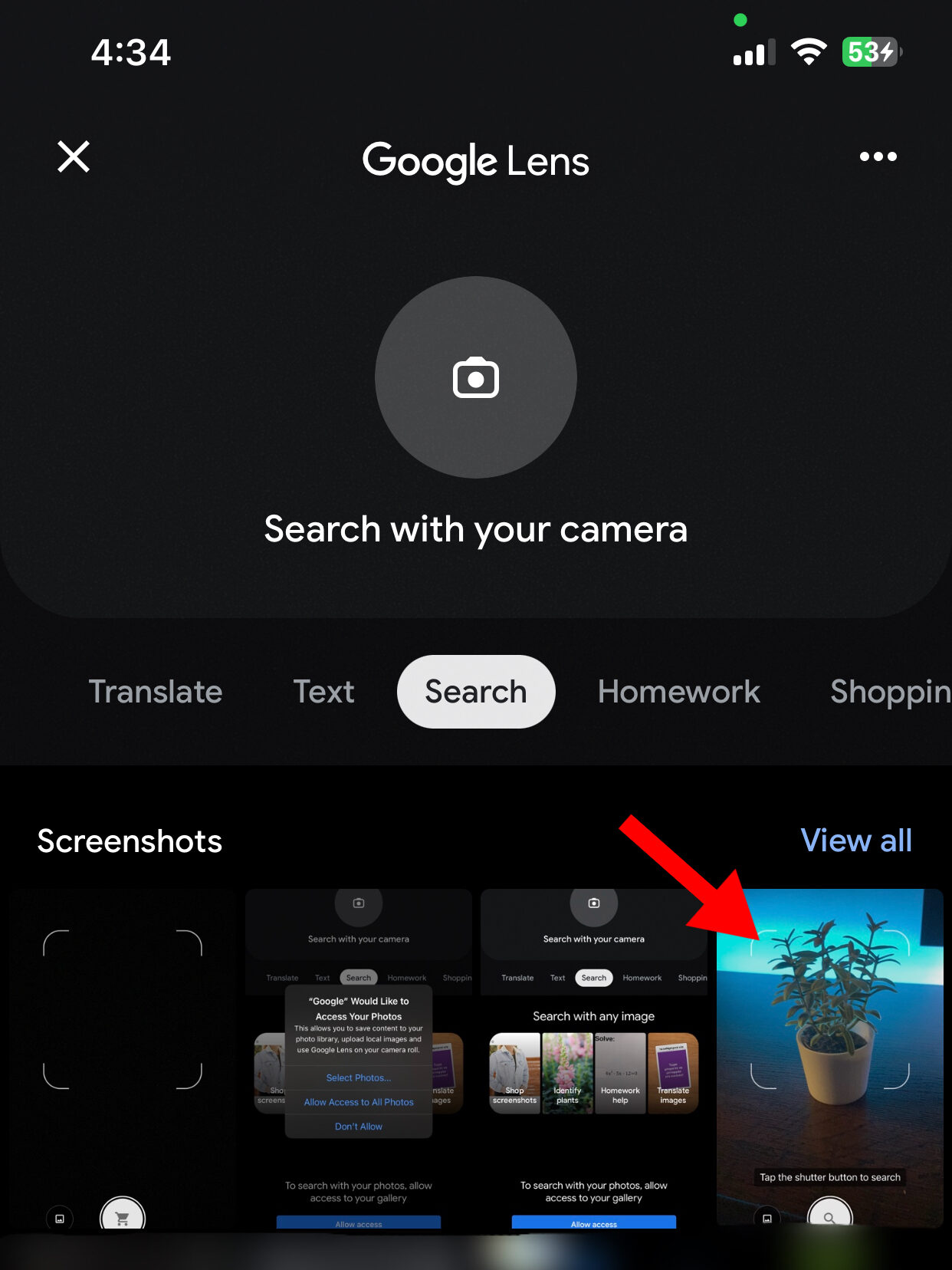
6. Choose an image from your camera roll to reverse search.
Using an Android phone
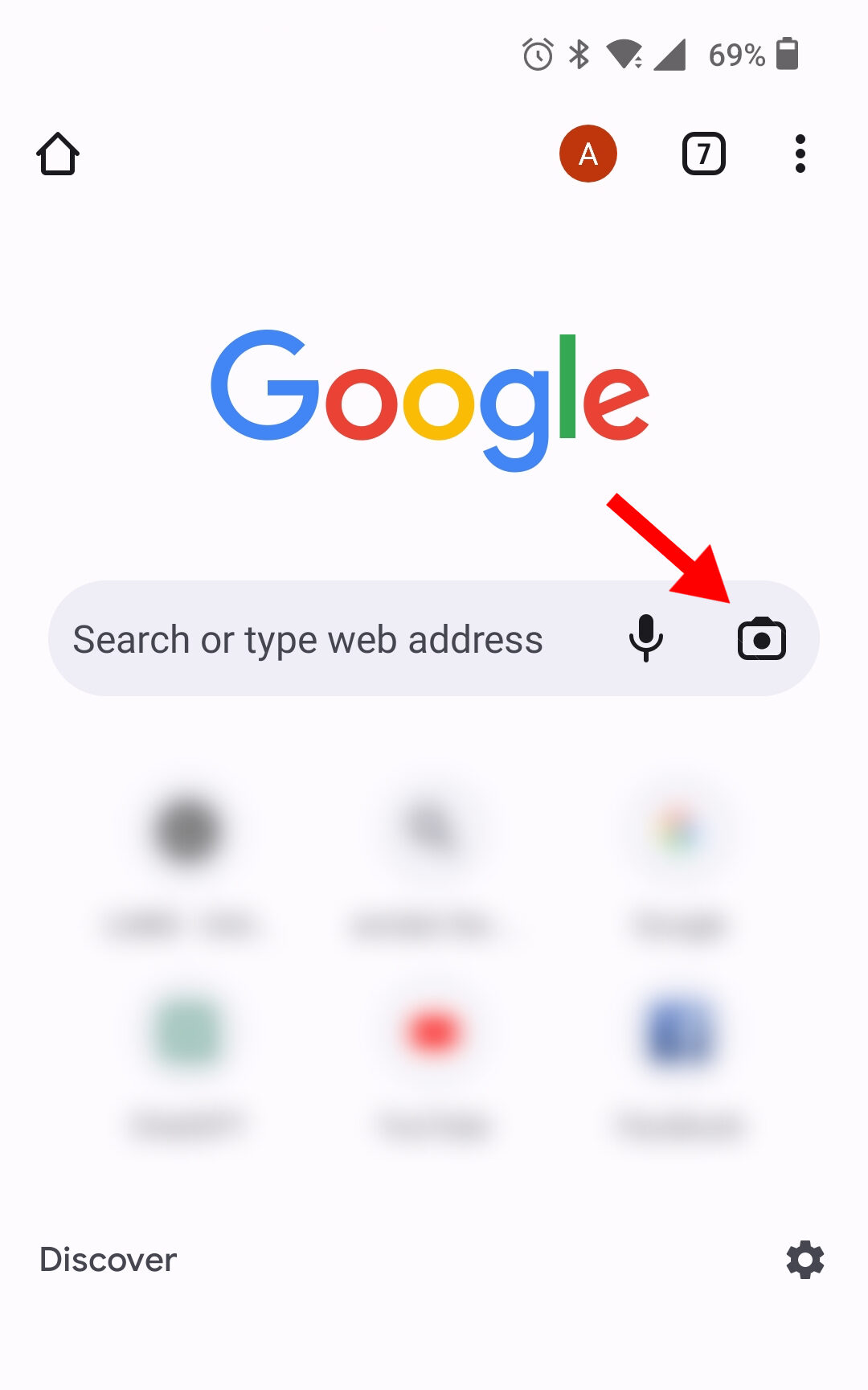
1. Open Google Chrome browser app on your phone and click on the camera icon to pop up the search image box.
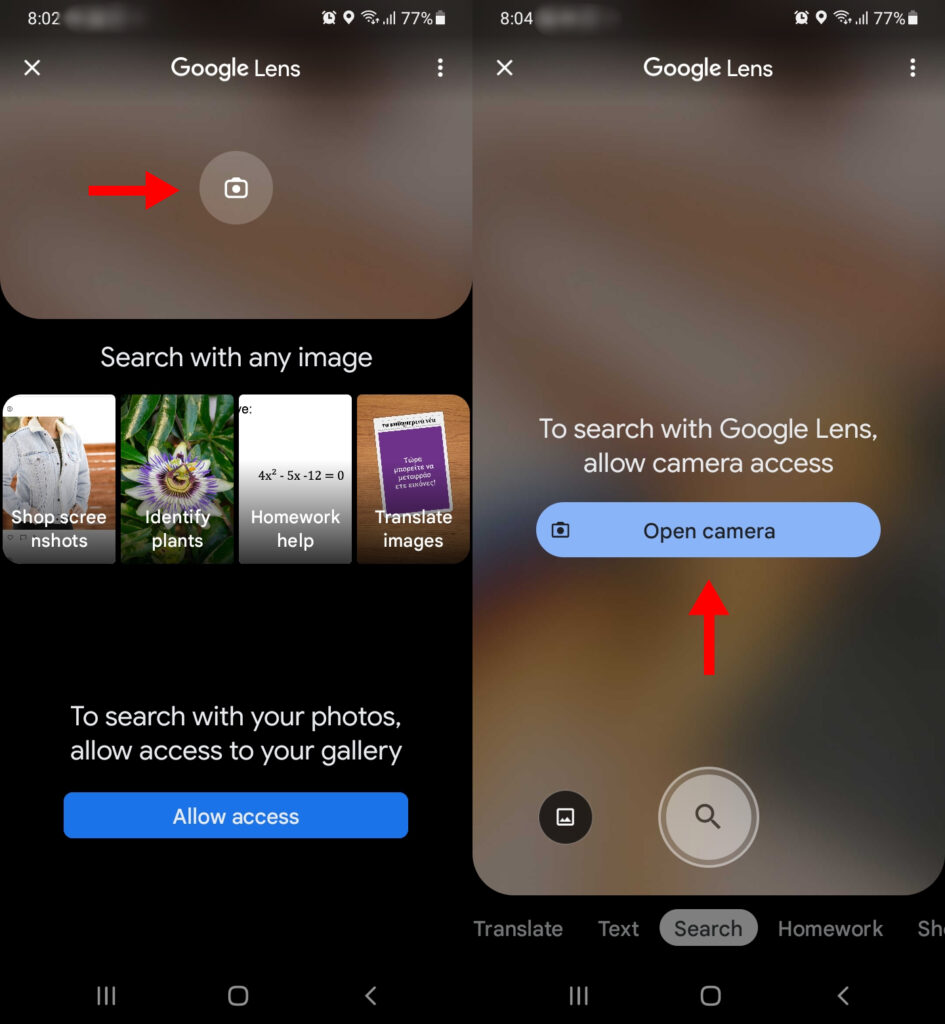
2. To identify a live object, tap on the camera again. When asked for permission, select Open Camera and While using the Google app.
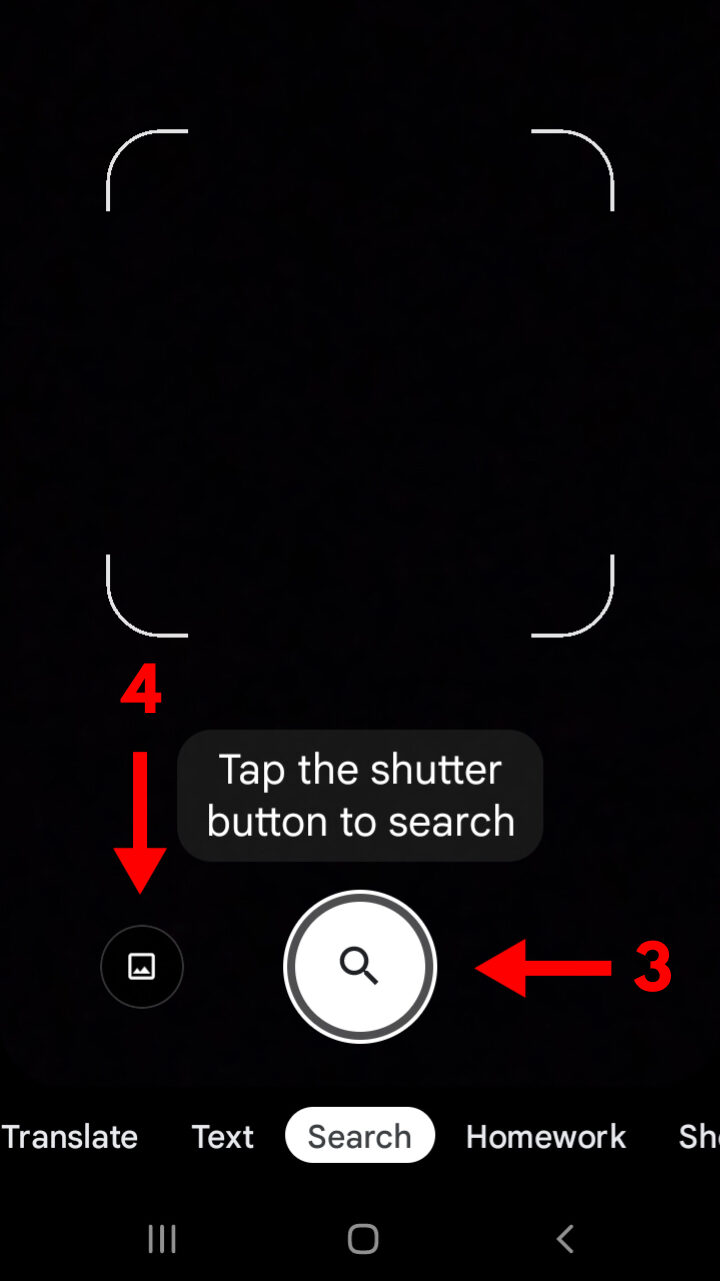
3. Hold the object in your viewfinder and click the shutter button.
4. If you want to search with an image saved, tap on the image icon next to the shutter button.
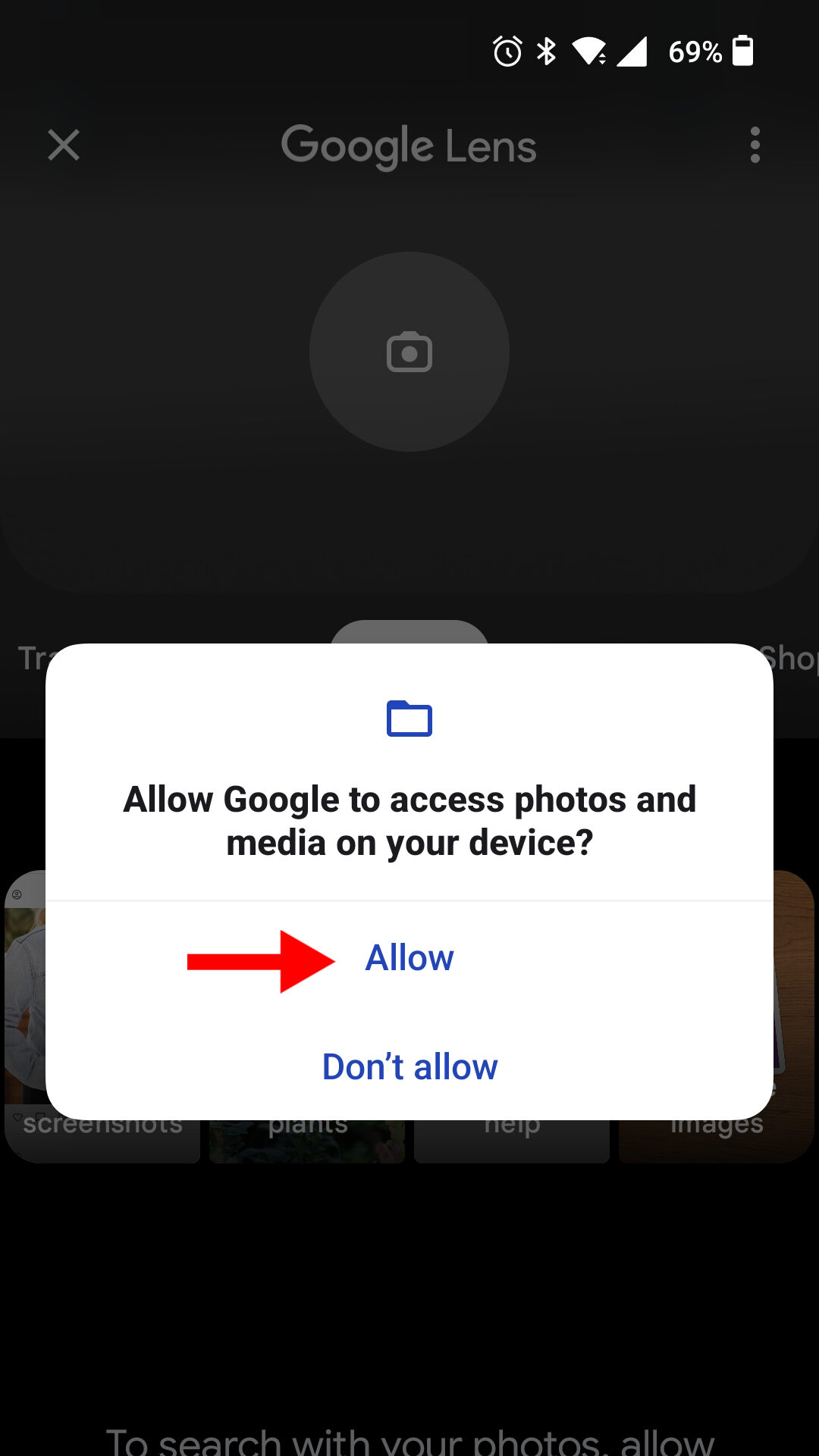
5. Select Allow Access and then Allow to open your gallery. Tap on any image to begin reverse searching.
After this step, the Google Lens icon will become available via the camera button on the home page in Google Chrome. And you can search an image with Google lens.
Using a PC
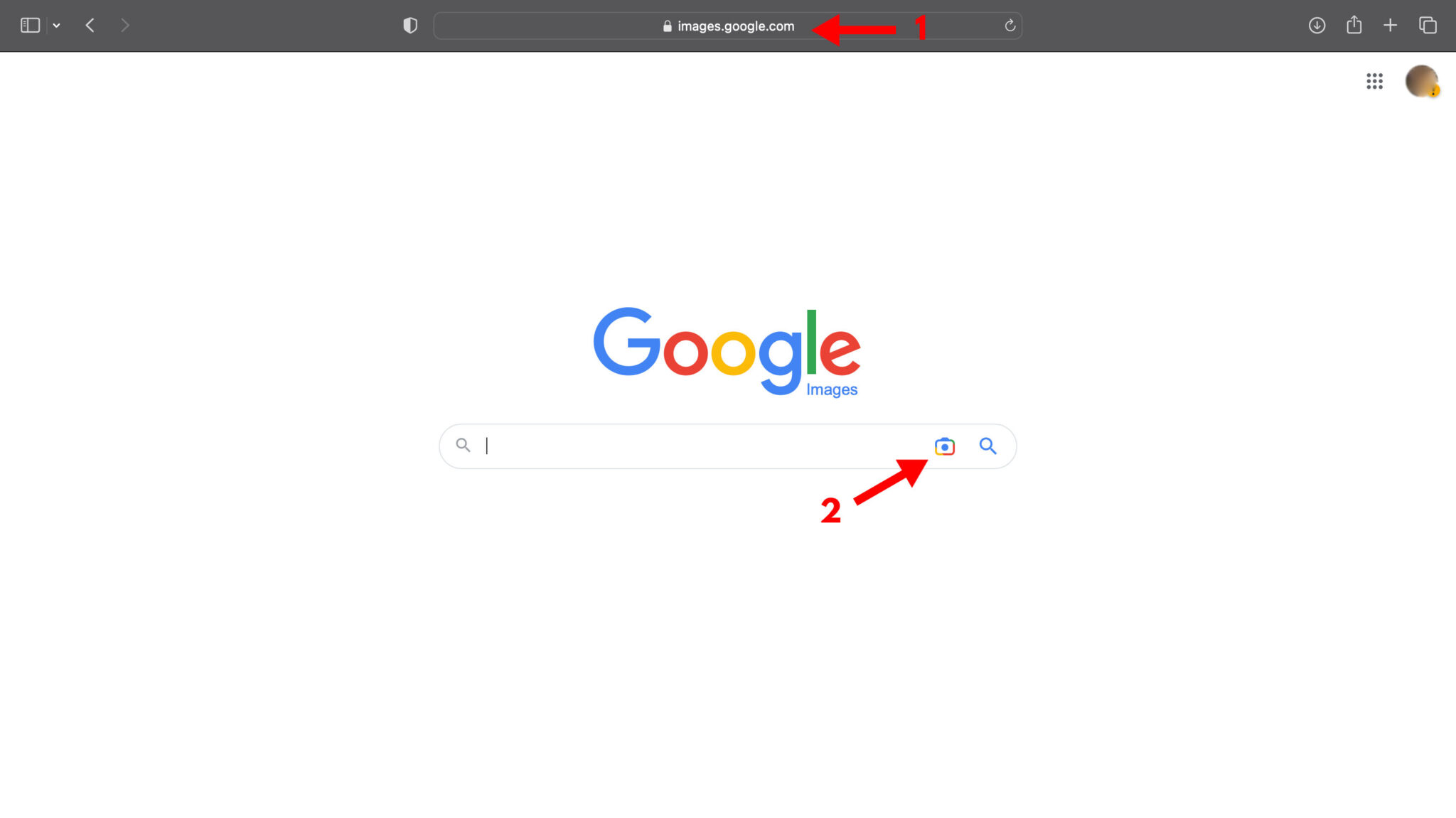
1. Open your internet browser and go to images.google.com.
2. Click on the camera icon for the choose search image box.
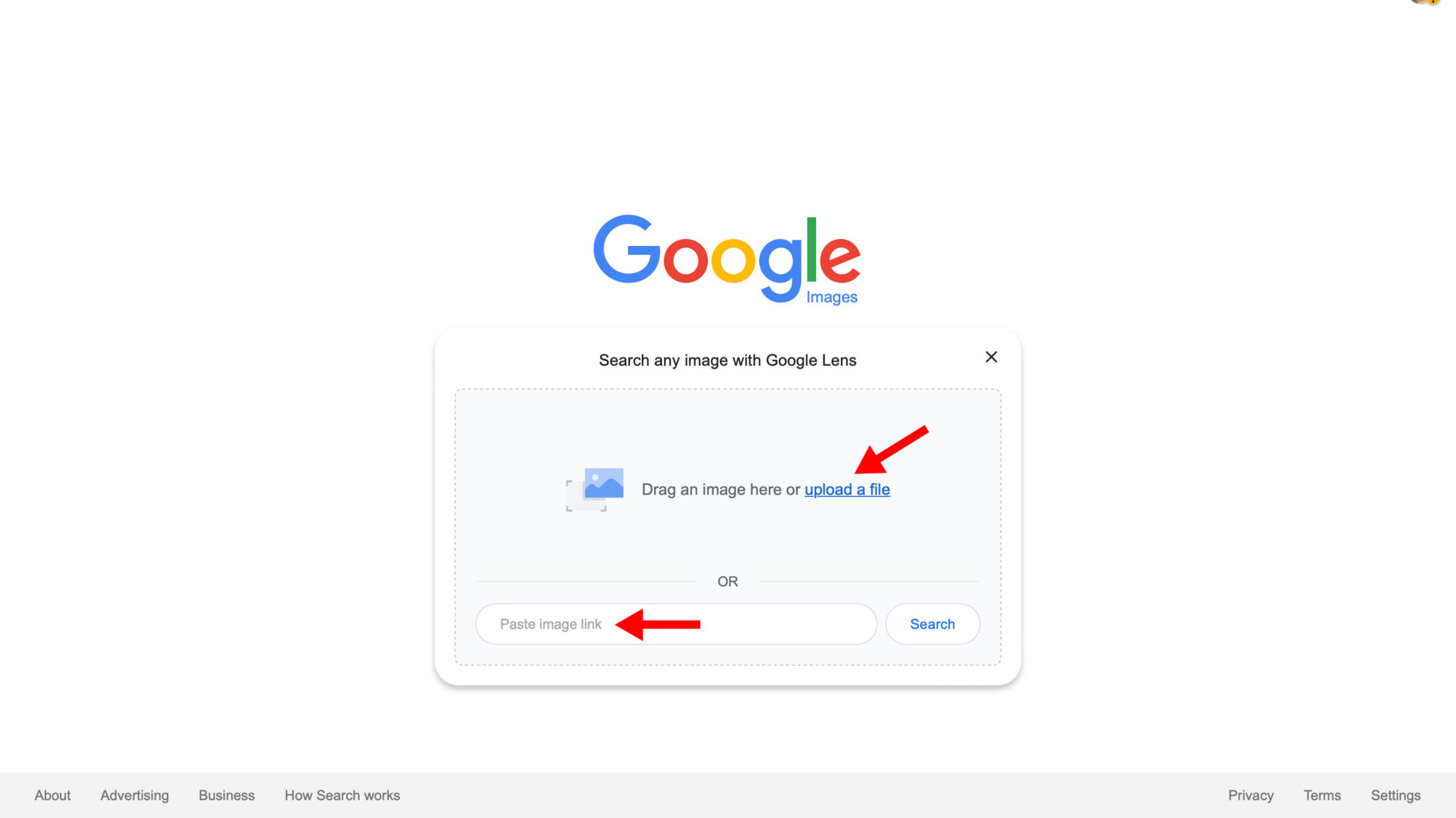
3. Drag/upload an image file from your folders or simply paste image link and click search.
You can also reverse search a picture you found on Google images. Here’s how to do so:
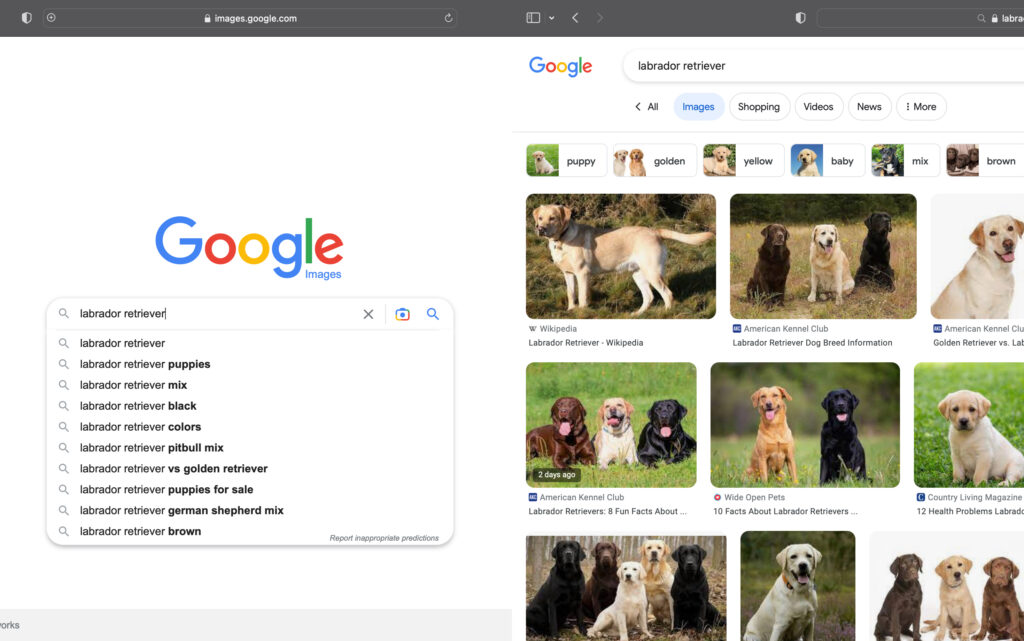
1. Open images.google.com and enter a keyword.
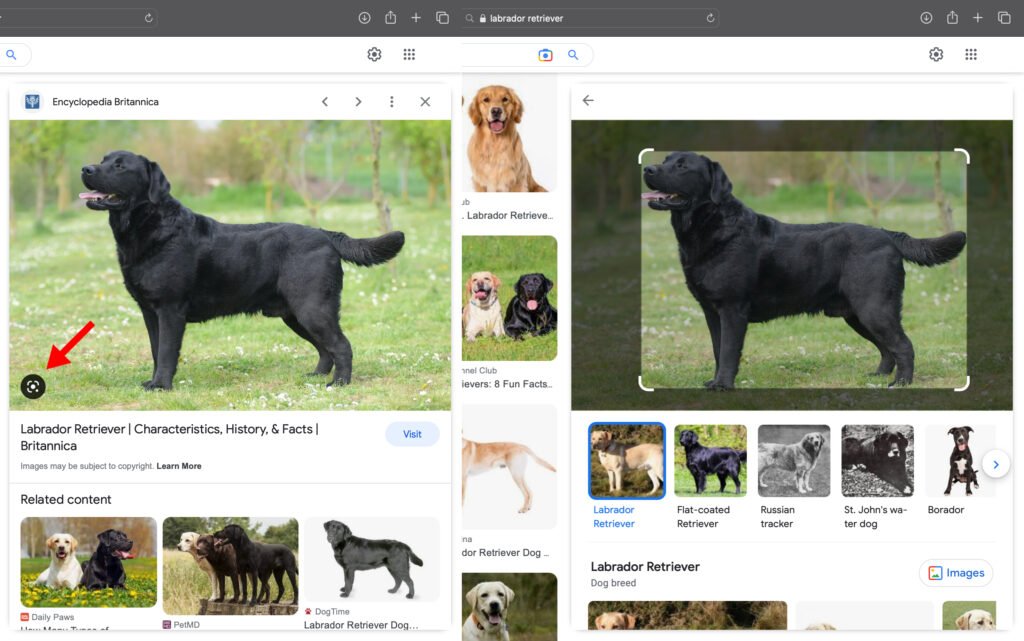
2. Click on a picture you want to enlarge and tap the viewfinder icon in the bottom left corner.
If you're learning reverse image searching to find media for your website, check out our list of 20 Best Websites Offering Free Photos For Blogs instead.
Other Ways To Do A Reverse Image Search
Google might take the lead in reverse image searching, but you can also use Bing and other search engines and third-party apps to get more accurate and diversified image search results.
Here are the best Google reverse image search alternatives:
Bing Visual Search
Microsoft Bing has a reverse image search feature called Visual Search that allows users to backtrack products, discover landmarks, and even solve math problems!
Here’s how to use Bing’s Visual Search engine on your phone or PC:
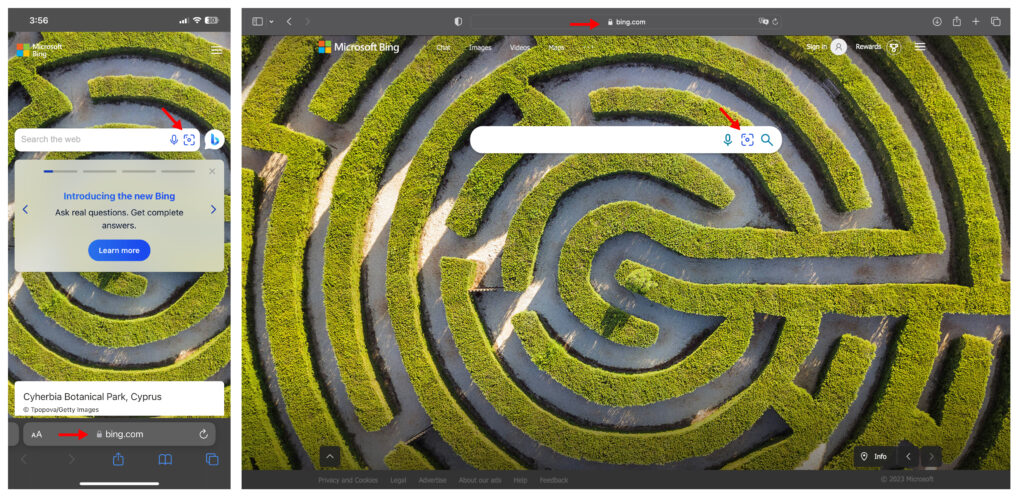
1. Open your browser and go to bing.com.
2. Click on the viewfinder icon in the search bar.
If you’re using a smartphone, follow these steps:
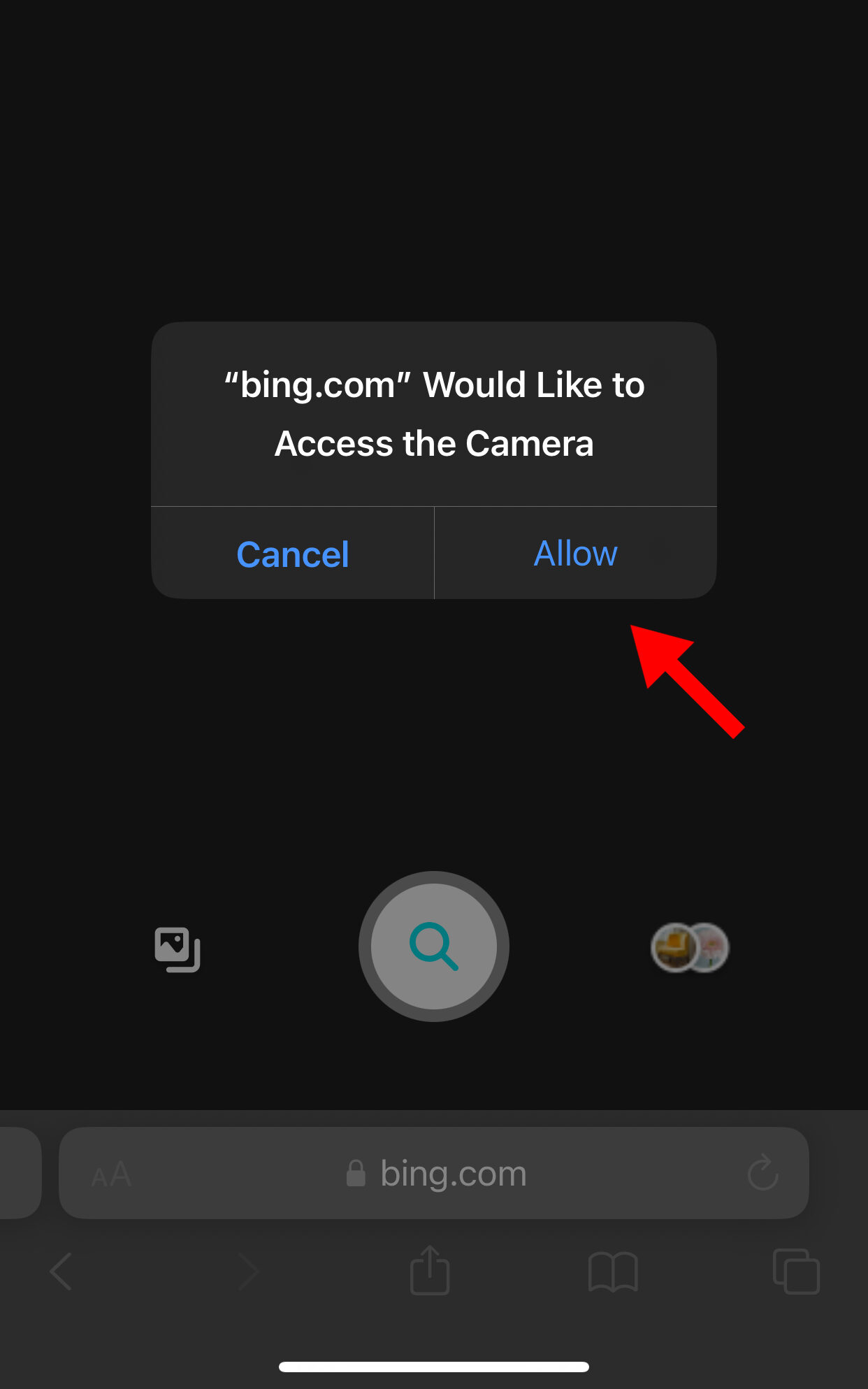
3. Select Allow when it asks permission to access your camera.
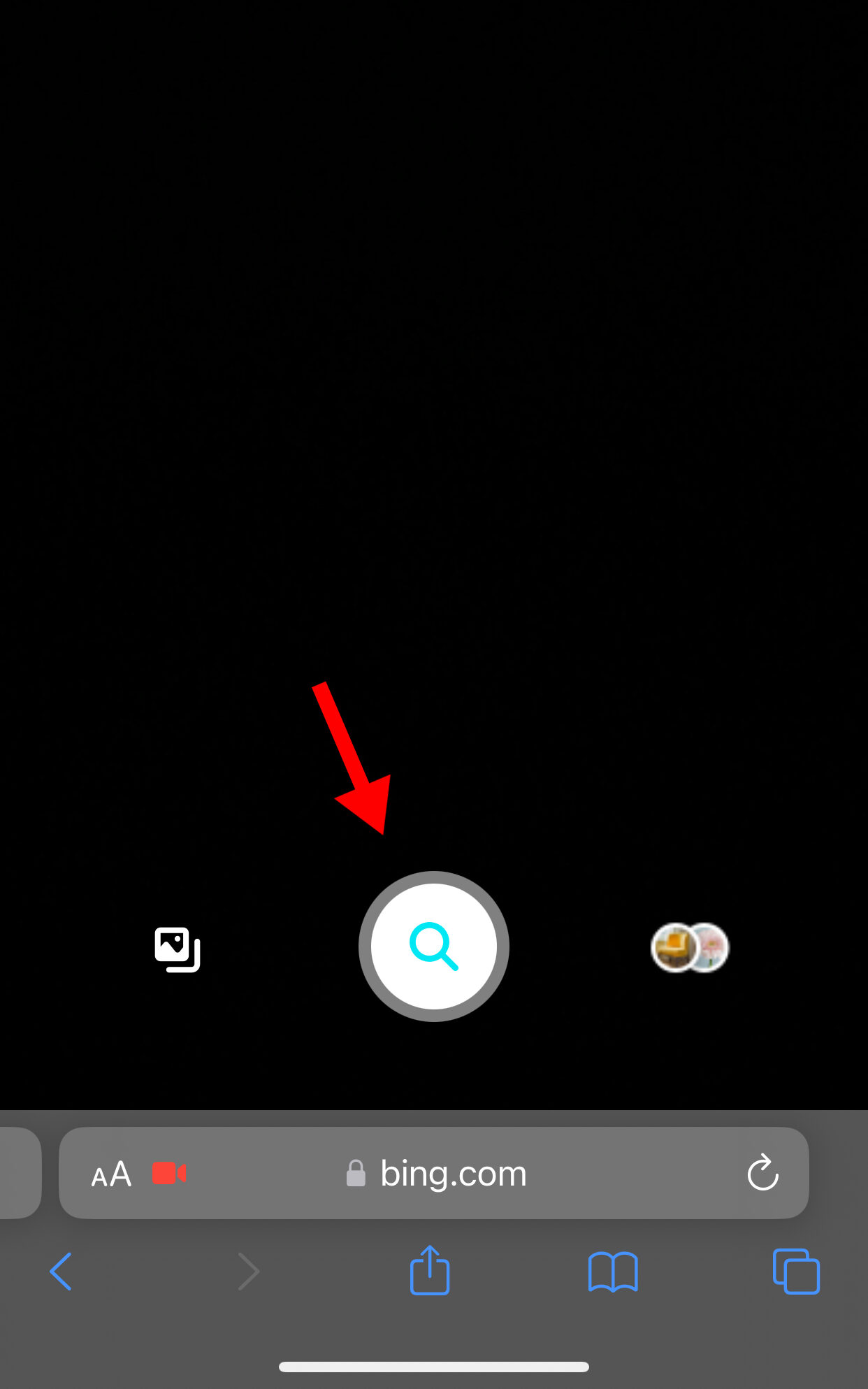
4. To scan a live object, hold it in your viewfinder or snap a picture using the shutter button.
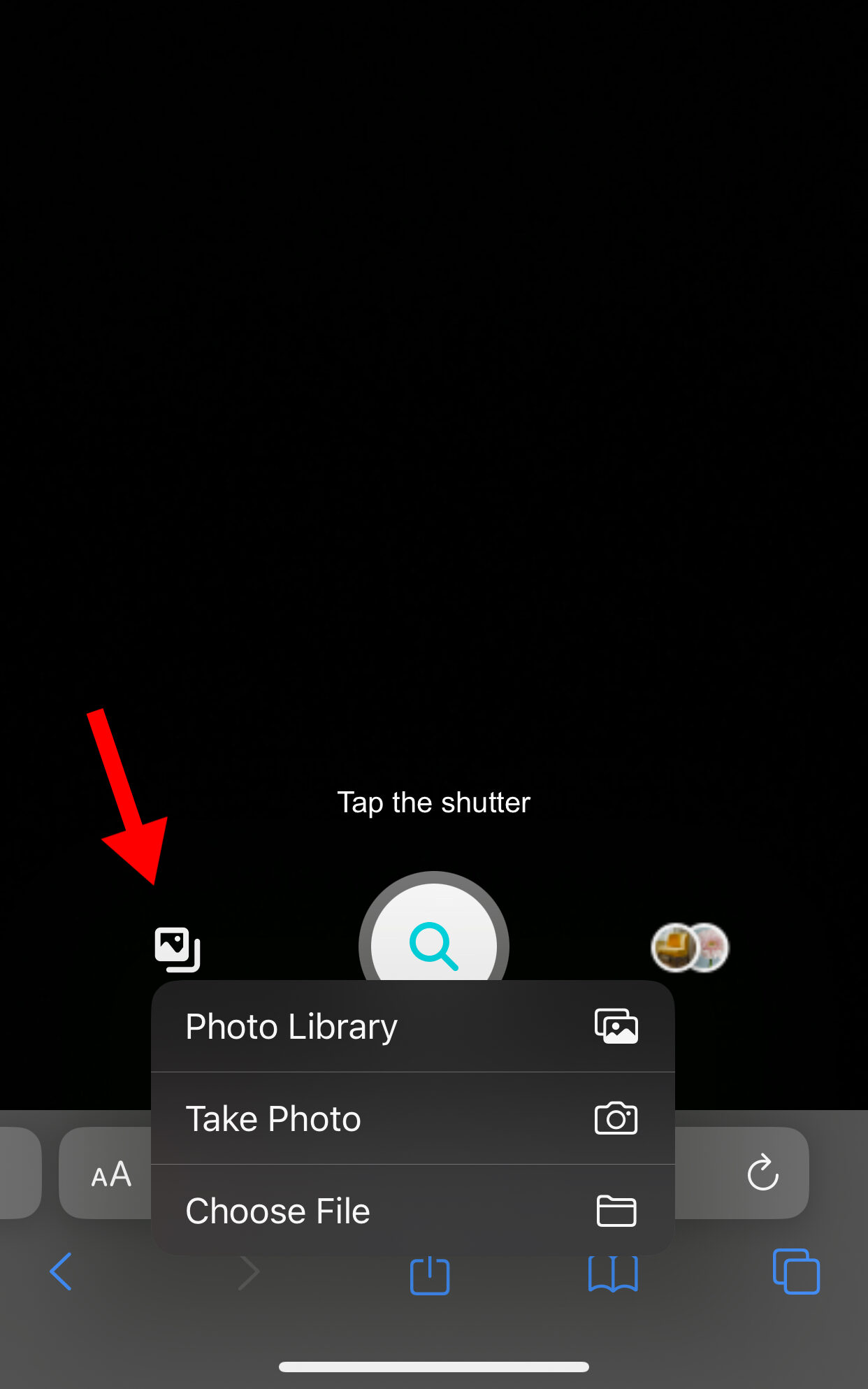
5. To analyze a saved image, upload it by tapping the image icon beside the shutter button.
If you’re using a PC, follow these steps:
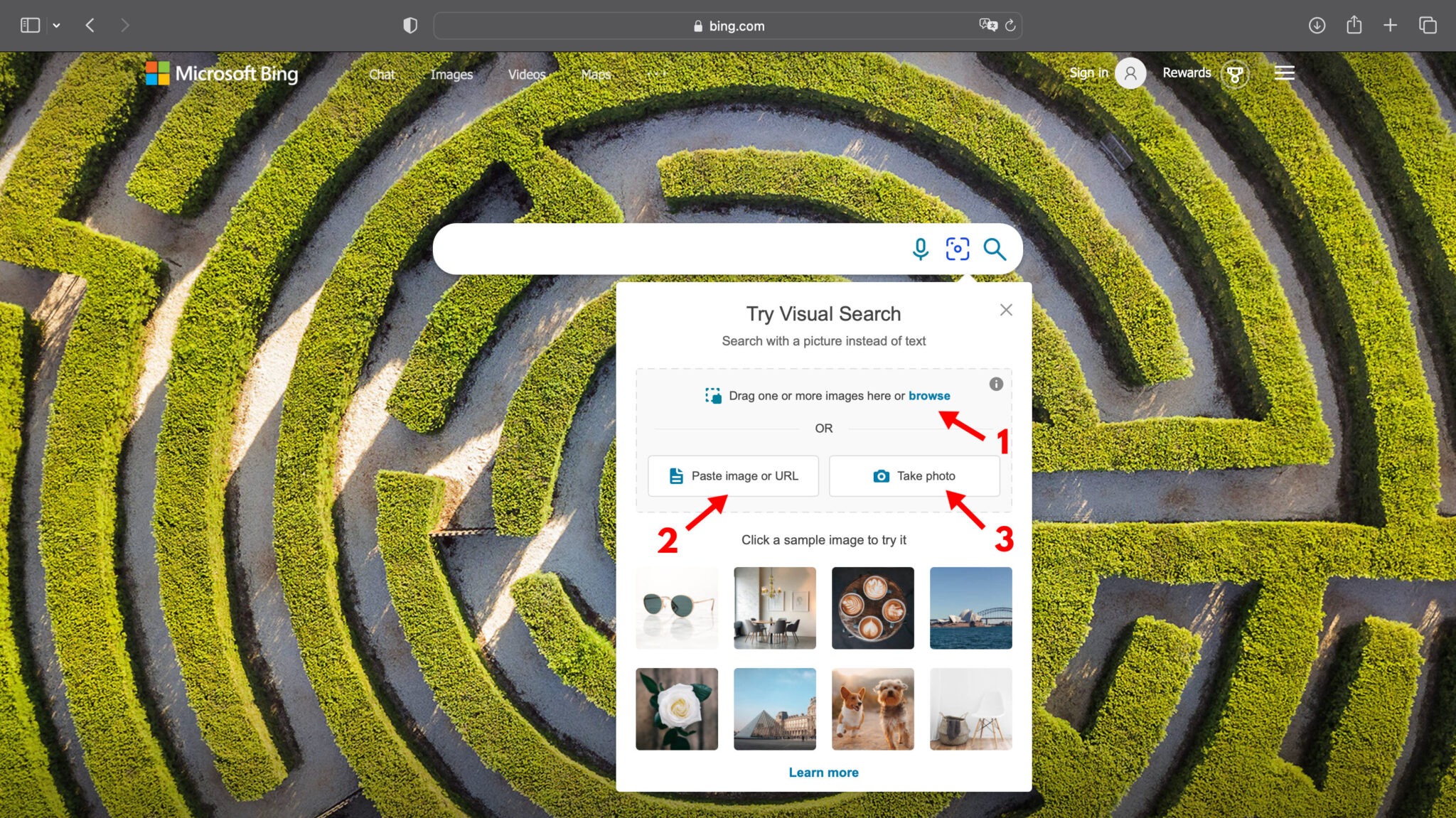
1. Drag a picture from your files or upload it using the browse link.
2. To reverse search an image from a website, click on the Paste image or URL button and enter the image address.
3. To inspect a live object using your webcam, tap on the Take Photo button and snap a photo.
Reversee
Reversee is a handy tool that makes reverse image searching on smartphones effortless. It’s powered by Google images and can analyze relevant websites, people, and even math solutions from pictures!
You can get Reversee Pro for $3.99 and get results from 2 additional search engines (Bing and Yandex) as well.
Here’s how to use Reversee for reverse image searching:
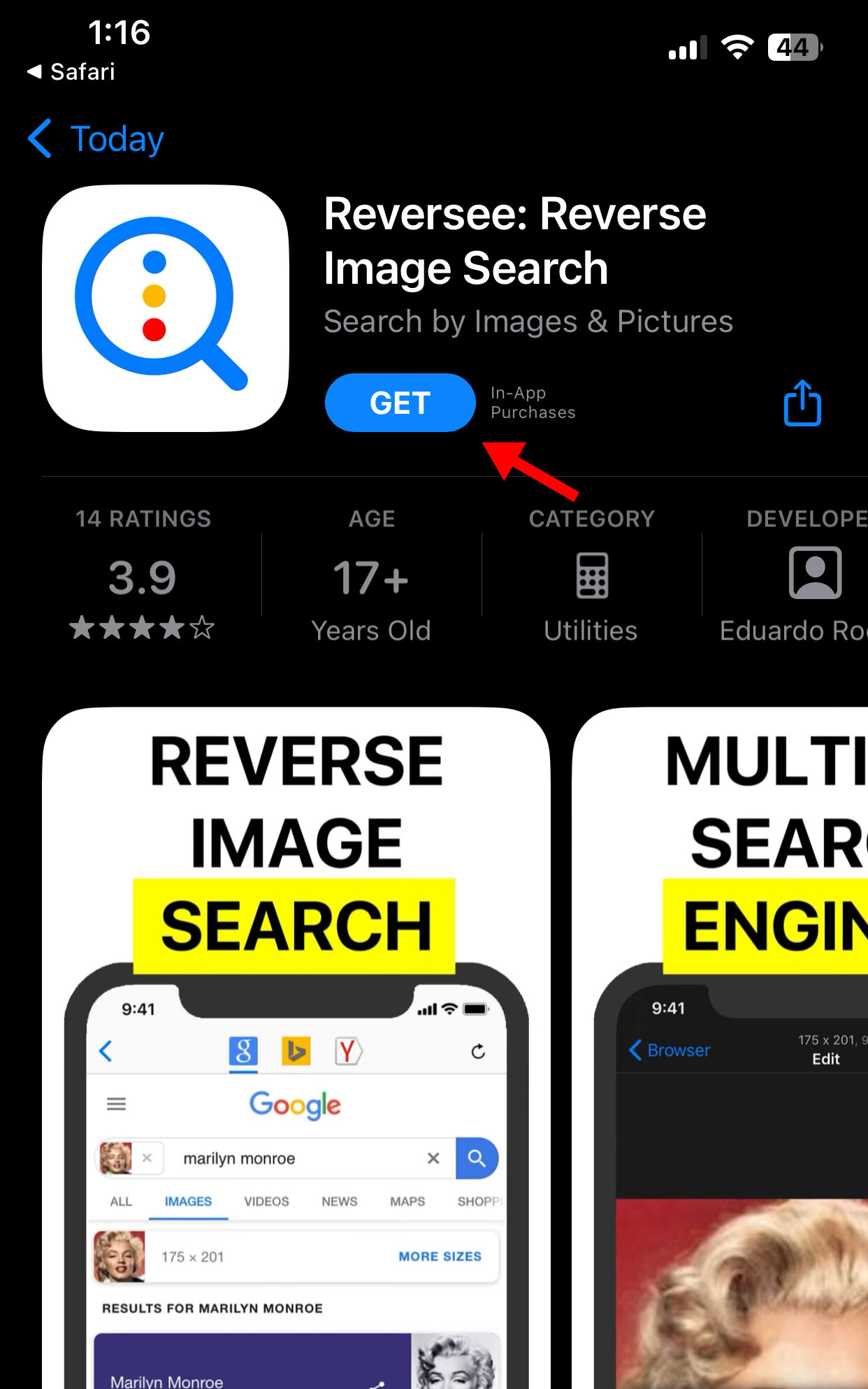
1. Download Reversee for iOS or Android on your smartphone.
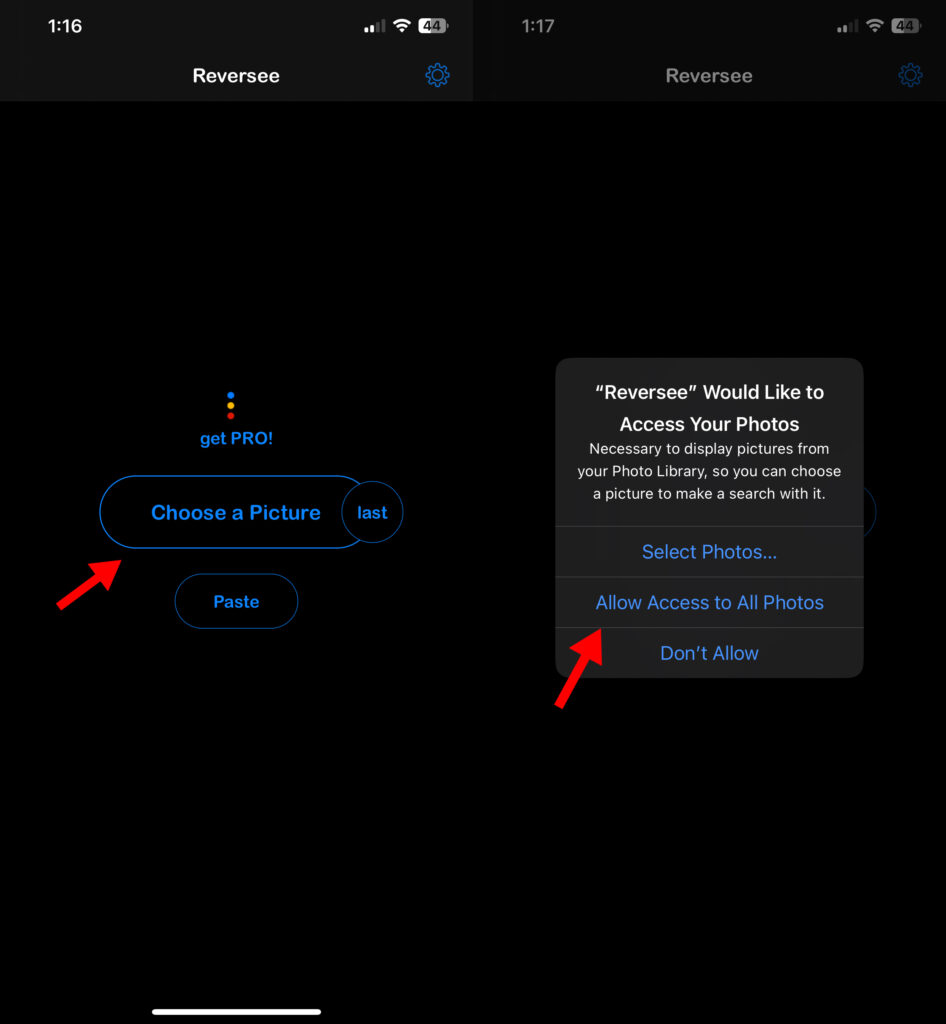
2. Open the app from your home screen and tap on Choose a Picture.
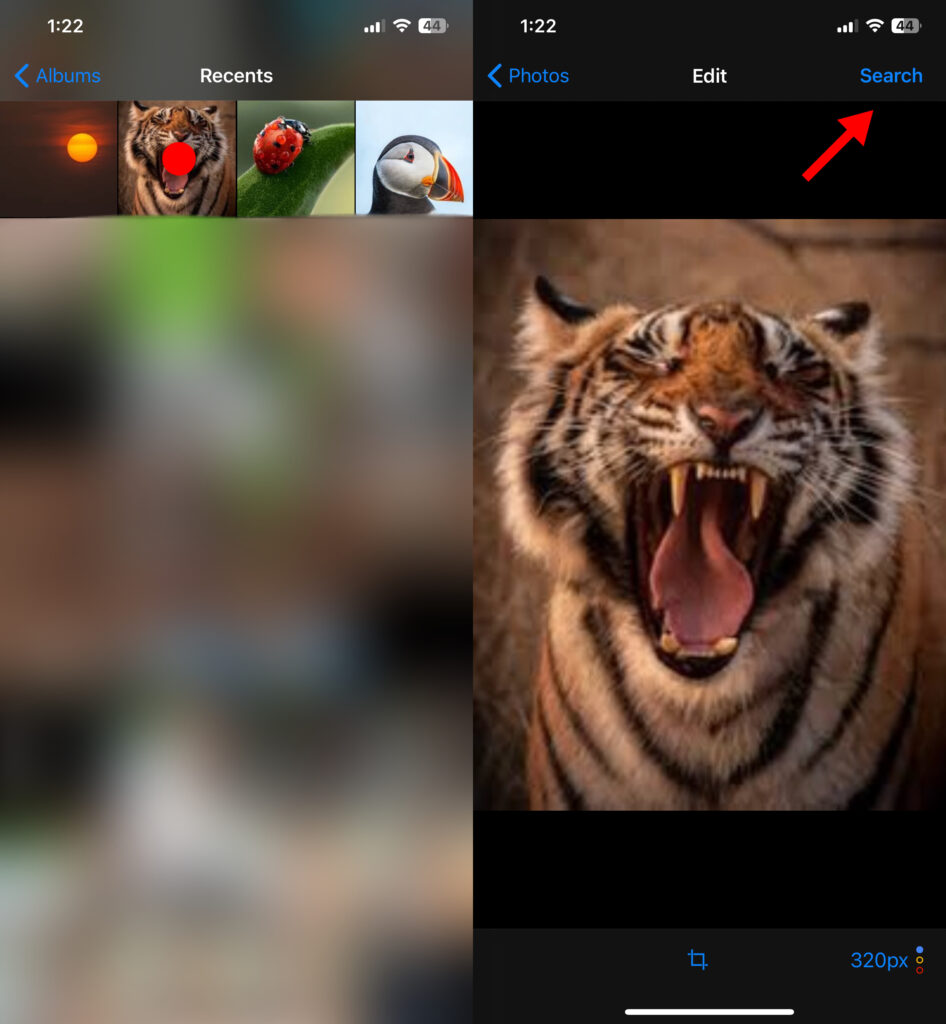
3. Select an image from your gallery and click on the Search button in the top right corner.
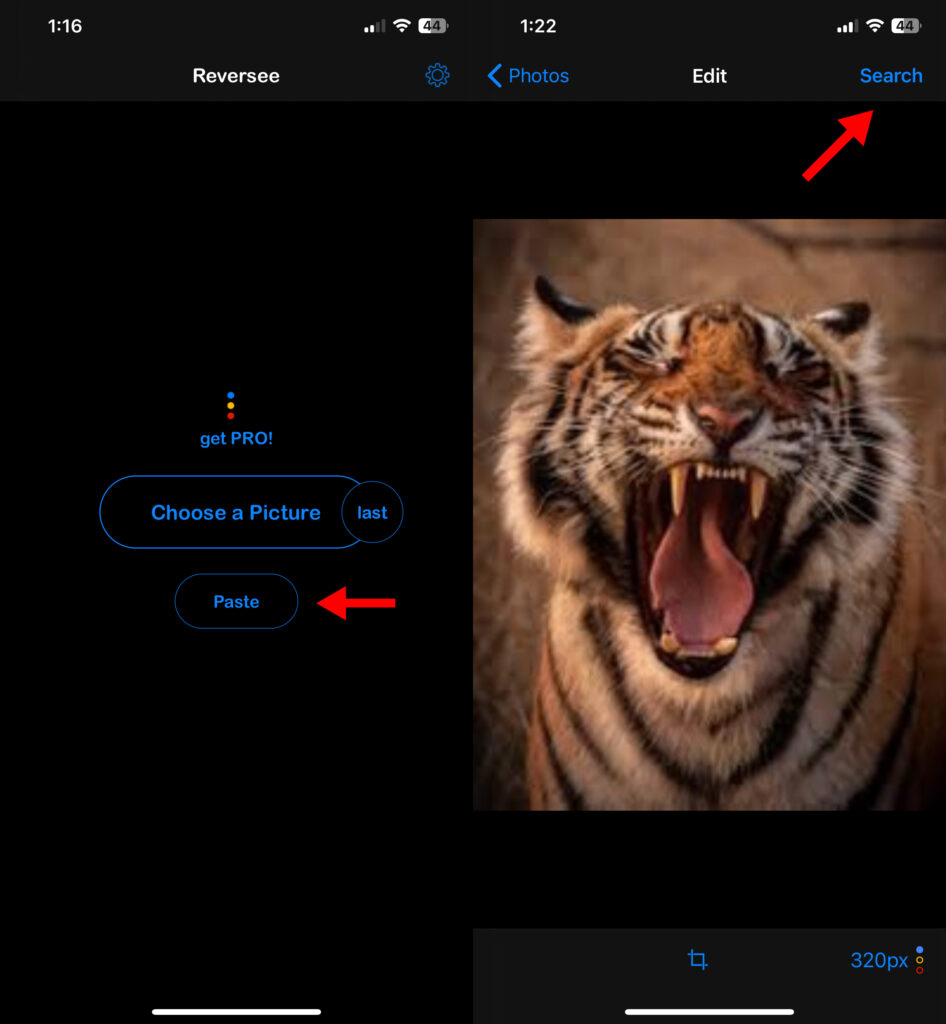
4. To scan a copied image, tap the Paste button on the main screen and hit Search.
CamFind
CamFind is a must-have for individuals who prefer using visual search by taking photos with their camera. It uses CloudSight to visual search and is far more accurate than Google and Bing.
When you’re scanning QR codes, looking for discounts, or exploring landmarks, CamFind gives you a precise match for each item and says its name aloud.
Here are the steps to use the reverse image search app:
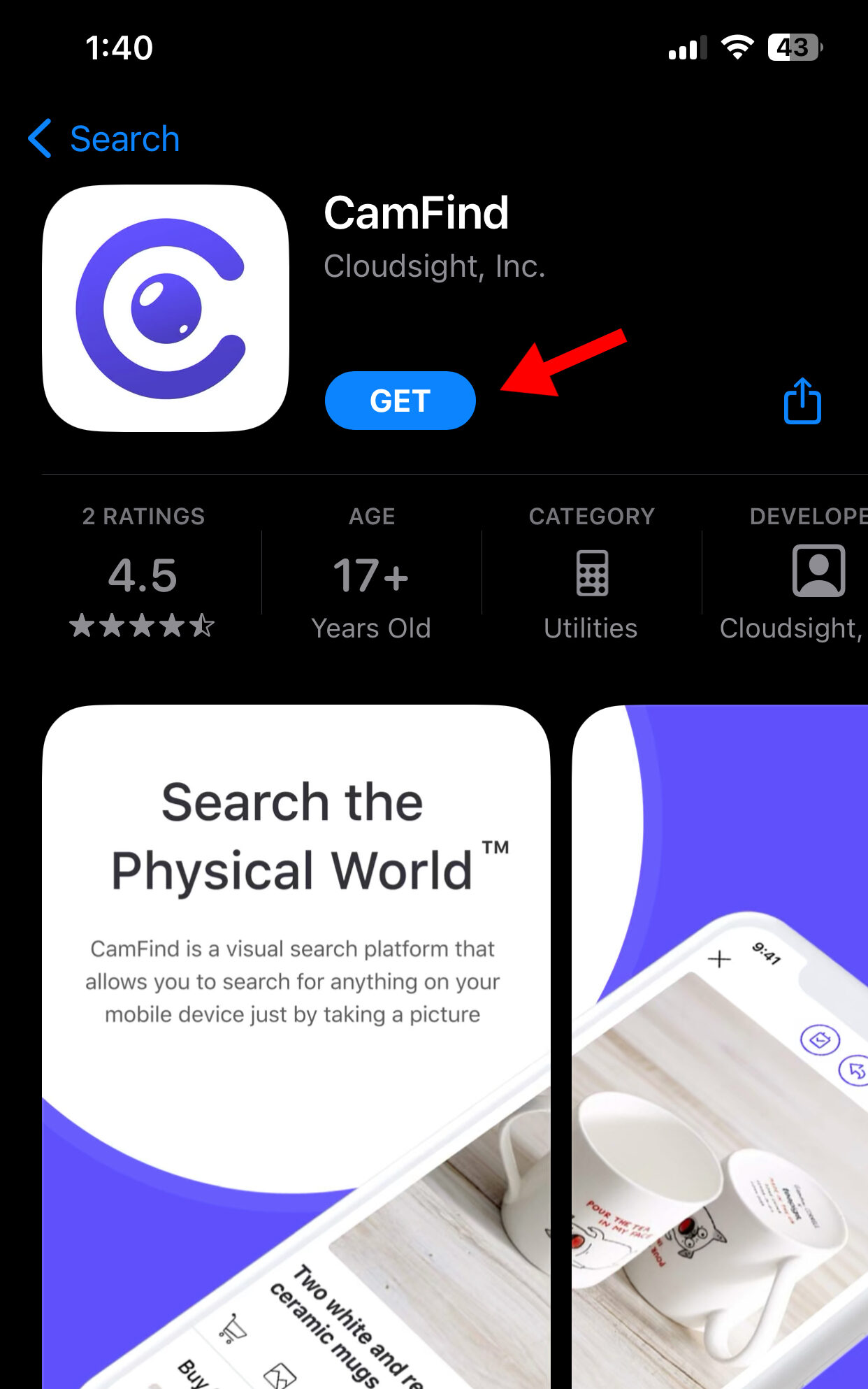
1. Install CamFind on your iOS or Android device.
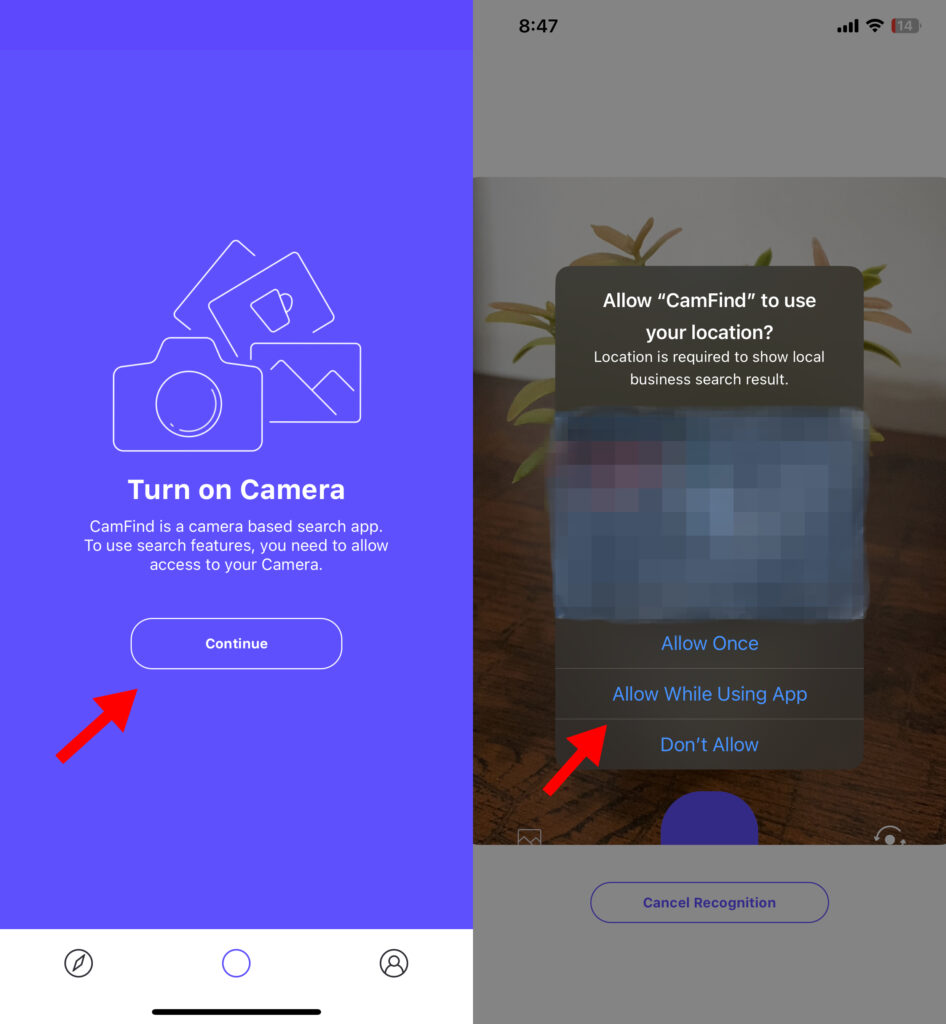
2. Open the app and allow access to your location and camera.
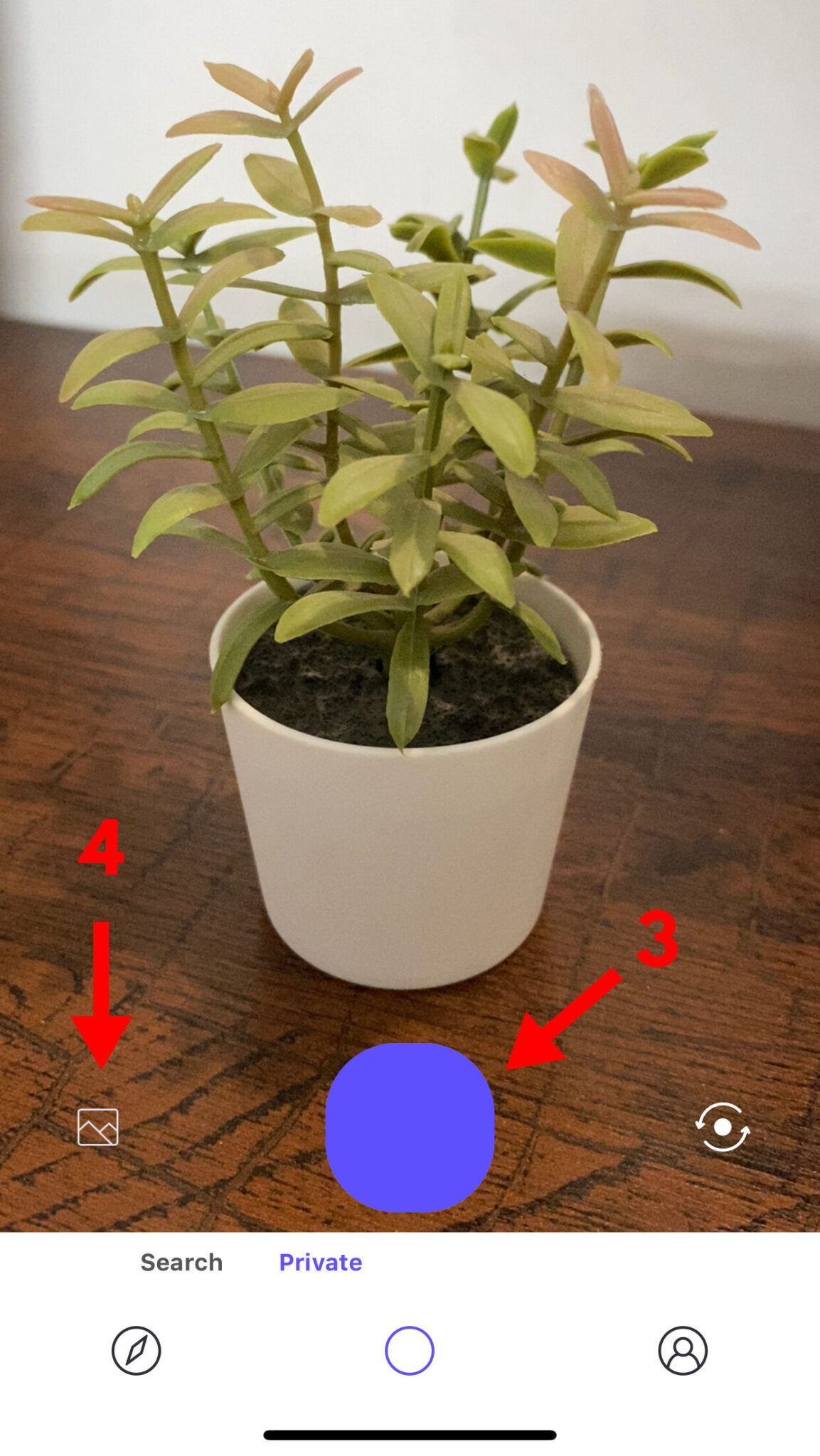
3. Place an object in your viewfinder and press the shutter button to take a picture.
4. To scan a downloaded image, click the image icon next to the shutter button to open your camera roll.
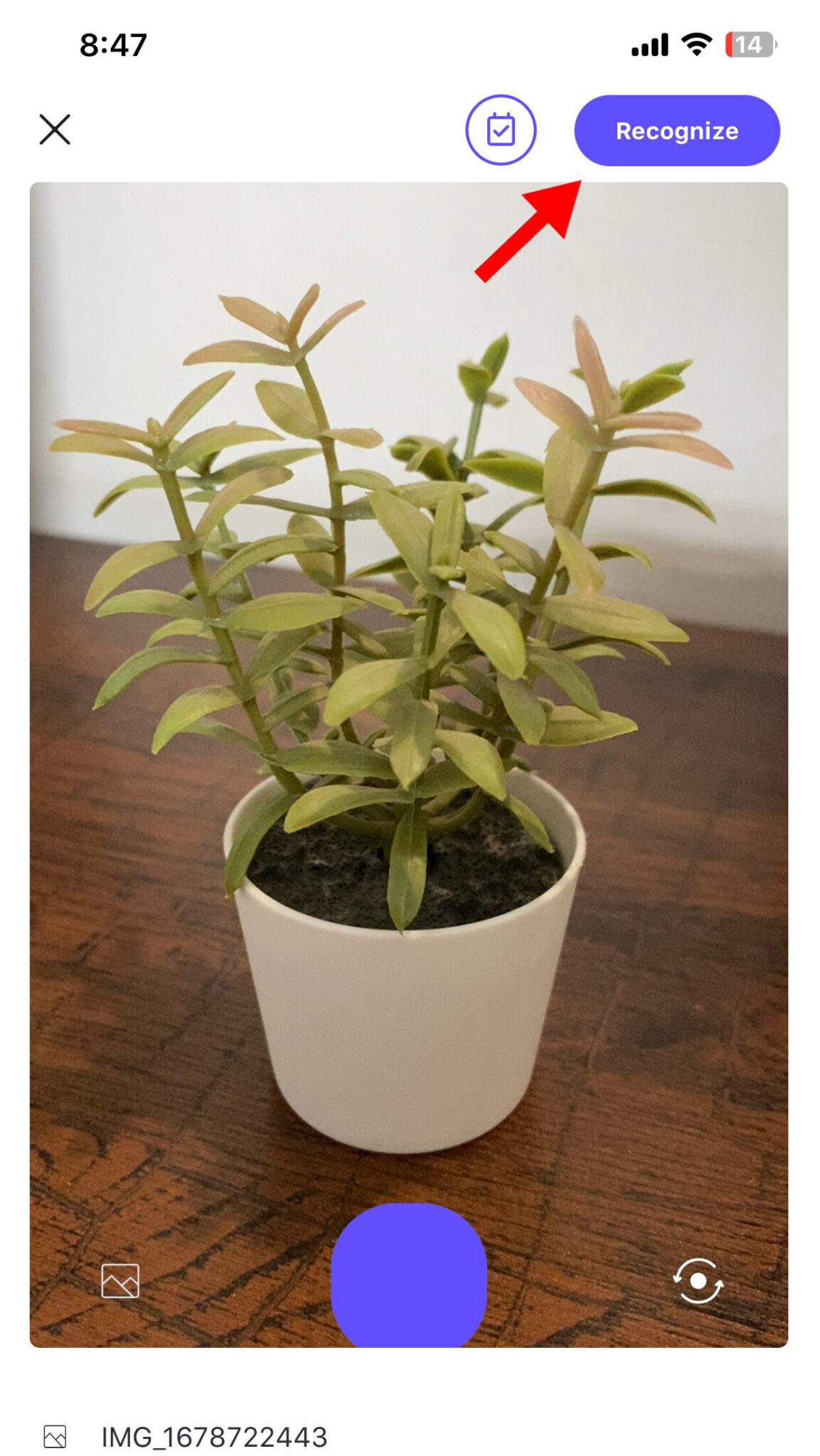
5. Select a picture and click on the Recognize button in the top right corner.
How To Google Search an Image In Closing
Knowing how to do a reverse image search can help you discover the origins of any real-life object. Additionally, apps like Google and CamFind have made this a seamless process, whether you’re using a smartphone or a PC.
If you want to discover other platforms like YouTube, check out our list of the 15 Best Video Search Engines.
Or, if you’d like to convert more clients and increase your earnings, read our guide on How To Use ChatGPT To Write A Cover Letter.
Related Posts






Want to learn step-by-step how I built my Niche Site Empire up to a full-time income?
Yes! I Love to Learn
Learn How I Built My Niche Site Empire to a Full-time Income
- How to Pick the Right Keywords at the START, and avoid the losers
- How to Scale and Outsource 90% of the Work, Allowing Your Empire to GROW Without You
- How to Build a Site That Gets REAL TRAFFIC FROM GOOGLE (every. single. day.)
- Subscribe to the Niche Pursuits Newsletter delivered with value 3X per week
My top recommendations